


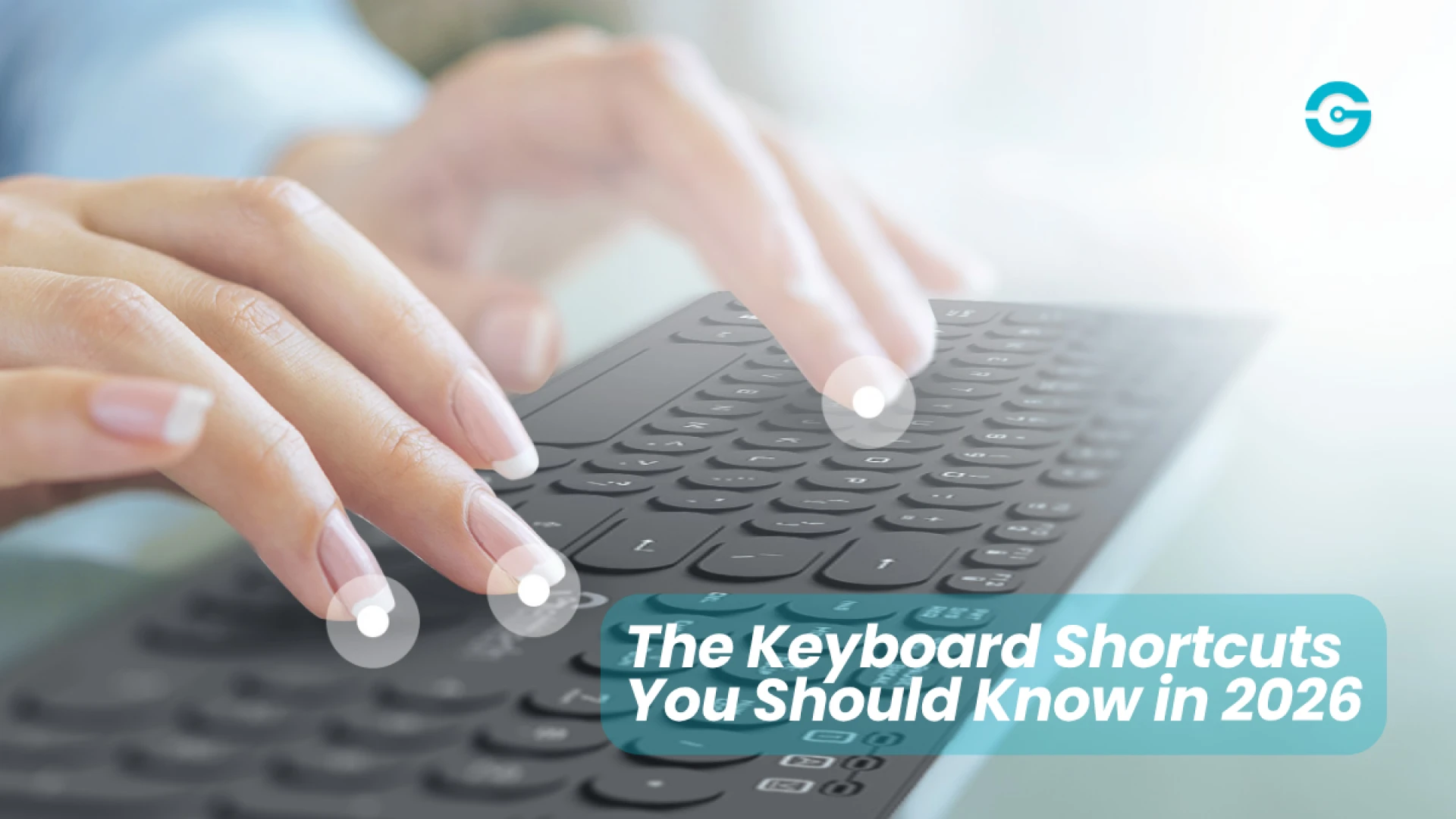
The Keyboard Shortcuts You Should Know in 2026
by Getttech
Discover essential Windows keyboard shortcuts for 2026, including basic commands, multitasking, and quick access to AI tools like Copilot and Gemini.
The Keyboard Shortcuts You Should Know in 2026
Keyboard shortcuts have been around forever, but the way we use them is changing. Windows still has classic navigation and editing tools, but now includes shortcuts designed to put AI tools like Copilot and Gemini just a keystroke away.
So, if you spend hours working, studying, browsing or creating on your PC, these are some of the keyboard shortcuts worth knowing in 2026.
The everyday shortcuts you should already know
Let's start with the basics. These shortcuts work across many Windows apps and can save you from constantly reaching for the mouse:
- Ctrl + C: Copy selected content
- Ctrl + V: Paste
- Ctrl + X: Cut
- Ctrl + Z: Undo your last action
- Ctrl + A: Select everything
- Ctrl + F: Find text or information
- Alt + Tab: Switch between open apps
- Win + D: Show or hide the desktop
These may not be new, but they're some of the easiest ways to make everyday PC use faster. Microsoft continues to include them among the standard Windows keyboard shortcuts.
Shortcuts for working with Windows
When you're working with several apps at once, keyboard shortcuts can make multitasking much easier:
- Win + E: Open File Explorer
- Win + I: Open Settings
- Win + L: Lock your PC
- Win + V: Open clipboard history
- Win + Shift + S: Take a screenshot with Snipping Tool
- Win + Arrow key: Snap a window to different areas of the screen
Instead of dragging windows around or searching through menus, a few keystrokes can handle the job. For anyone working with documents, browsers, spreadsheets or multiple apps at once, these can quickly become part of your everyday routine.
The AI shortcuts changing PC workflows
Here's where 2026 gets more interesting. AI tools are becoming part of the desktop experience, and keyboard shortcuts are becoming one of the fastest ways to access them.
Win + C for Copilot
On Windows, Win + C can launch Microsoft Copilot or Microsoft 365 Copilot, depending on your setup. Microsoft also supports dedicated Copilot keys on compatible keyboards. That means you don't always have to open your browser or search through your Start menu when you want help from Copilot. You can use it to brainstorm ideas, ask questions, work with information and get help while you're already in the middle of something else.
Alt + Space for Gemini on Windows
Google brought the Gemini app to Windows in September 2026, and one of its biggest conveniences is its keyboard shortcut: Alt + Space. Press it and Gemini opens over your current work, so you can ask a question, generate ideas, summarize information or get help without completely leaving what you're doing. The app is available on Windows 10 and Windows 11. It's a small shortcut, but it represents a bigger change in how we interact with our computers: AI is becoming something you can call up instantly instead of another website you have to visit.
Shortcuts for better multitasking
When you're trying to get things done quickly, switching between apps can become one of those tiny tasks that adds up. Try these:
- Alt + Tab: Switch between open apps
- Win + Tab: Open Task View
- Win + Ctrl + Left/Right Arrow: Switch between virtual desktops
- Win + Arrow keys: Snap and arrange windows
These are especially useful when you're working with a browser, documents, messaging apps and other tools at the same time. Once they become muscle memory, you may find yourself reaching for the mouse a lot less.
Shortcuts for writing and editing
You don't need a complicated setup to type faster. Start with shortcuts you already use while writing:
- Ctrl + Backspace: Delete an entire word
- Ctrl + Left/Right Arrow: Move through text one word at a time
- Shift + Arrow keys: Select text
- Ctrl + Shift + Left/Right Arrow: Select text one word at a time
- Ctrl + Shift + V: Paste as plain text in supported apps
Microsoft notes that some shortcuts can behave differently depending on the application, so it's worth testing them in the programs you use most.
Don't forget the keyboard you're using
Knowing shortcuts is one thing. Using them comfortably is another. When you spend hours typing, switching between apps and navigating your PC, your keyboard becomes one of the tools you interact with the most. A layout that feels comfortable and responsive can make everyday shortcuts easier to use and help your workflow feel more natural.
That's one reason choosing the right keyboard isn't only about aesthetics or RGB lighting. The keyboard is part of how you interact with your entire PC. For work, school, gaming or everyday use, a comfortable keyboard can turn shortcuts from something you occasionally remember into something you actually use.
A few minutes of shortcuts can save a lot of time
You don't need to memorize every Windows shortcut. Start with a handful you'll actually use: Alt + Tab, Win + V, Win + Shift + S, Win + Arrow keys, and one of the newer AI shortcuts like Win + C or Alt + Space.
The more you use them, the more automatic they become.
And in 2026, that's what makes keyboard shortcuts especially useful: your keyboard isn't just helping you type anymore. It's becoming a faster way to navigate your PC, manage your workflow and access the tools you use every day.
Submit your review
Your email address will not be published. Required fields are marked *
 GAMING PCs
 MONITORS
 AUDIO
AUDIO
 COMPUTER CASES
 POWER SUPPLIES
 KEYBOARDS & MICE
 FURNITURE
 FANS & PC COOLING
 STREAMING GEAR