





Keyboard Not Working on Windows? 8 Common Problems and Easy Fixes
Troubleshooting a keyboard that isn't responding on Windows? Discover 8 easy fixes for USB, Bluetooth, drivers, and typing settings.
Keyboard Not Working on Windows? 8 Common Problems and Easy Fixes
You're in the middle of writing an email, working on a project, or getting ready to play a game when suddenly… nothing. You press a key, try another one, and still no response.
If your keyboard is not working on Windows, there's no need to panic just yet. The problem could be something as simple as a loose USB connection, a low battery, or a Windows setting that changed unexpectedly.
Before replacing your keyboard or digging through complicated system settings, try these simple fixes to figure out what's going on.
1. Check Your Keyboard's Connection
It might sound obvious, but checking the connection is one of the easiest ways to troubleshoot a keyboard that isn't responding.
If you're using a wired USB keyboard:
- Unplug the keyboard and reconnect it.
- Try a different USB port on your computer.
- If you're using a USB hub, connect the keyboard directly to your PC.
- Check the cable for visible damage.
Give Windows a few seconds to recognize the device after reconnecting it. If your keyboard starts working in another USB port, the original port or connection may be the issue.
If you're using a wireless keyboard:
Check whether the keyboard is switched on and has enough battery power. If it uses a USB wireless receiver, disconnect the receiver, wait a few seconds, and plug it back in. Also, make sure the keyboard is within range of your computer and that nothing is blocking the connection.
2. Restart Your Computer
Sometimes, Windows or an application temporarily stops responding to keyboard input. A restart can clear a temporary software issue and allow Windows to initialize connected devices again.
If your keyboard doesn't work at all but your mouse still does, use the mouse to open Start → Power → Restart. Once Windows loads again, test the keyboard in a text editor or search box before opening your usual applications. If the keyboard only fails in one program, the problem may be related to that application rather than the keyboard itself.
3. Check Your Wireless Keyboard's Battery or Bluetooth Connection
Wireless keyboards can stop responding when their batteries run low or their connection drops. If your keyboard connects through Bluetooth, try these steps:
- Open Settings → Bluetooth & devices in Windows 11.
- Make sure Bluetooth is enabled.
- Check whether your keyboard appears as a connected device.
- If it isn't connected, select it and try reconnecting.
If that doesn't work, remove the keyboard from your Bluetooth device list and pair it again. You should also check the manufacturer's instructions for putting the keyboard into pairing mode. For a rechargeable keyboard, charge it before trying again. For a model that uses replaceable batteries, check that they're installed correctly and still have power.
4. Check Windows Keyboard Settings
If your keyboard connects but certain keys don't respond as expected, an accessibility setting could be affecting how Windows handles keystrokes. In Windows 11:
- Open Settings.
- Select Accessibility.
- Choose Keyboard.
- Check whether Filter Keys is turned on.
Filter Keys changes how Windows responds to brief or repeated keystrokes. Depending on the configuration, it can make it seem like certain keys aren't working properly. You can also check Sticky Keys if you're having trouble with keyboard shortcuts that require pressing multiple keys together.
5. Make Sure Windows Is Using the Right Keyboard Layout
Ever press a key expecting one character and get something completely different? Your keyboard might be fine; Windows could simply be using a different keyboard layout. For example, switching between US and UK English layouts can change the position of certain symbols.
To check your current layout:
- Look for the language indicator in the Windows taskbar.
- Select it to view your available keyboard layouts.
- Choose the layout that matches your physical keyboard.
You can also press Windows + Space to switch between installed input languages and keyboard layouts.
6. Update or Reinstall Your Keyboard Driver
If the keyboard still isn't responding, Windows may be experiencing a driver issue. Drivers help Windows communicate with connected hardware. Here's what to try:
- Right-click the Start button and open Device Manager.
- Expand the Keyboards section.
- Right-click the relevant keyboard device.
- Select Update driver and follow the instructions.
If updating doesn't help, you can try uninstalling the keyboard device and restarting your computer. Windows will usually attempt to detect the keyboard and reinstall the appropriate driver. Before uninstalling anything, make sure you have another way to control the computer, such as a working mouse and the on-screen keyboard.
7. Use the On-Screen Keyboard as a Temporary Fix
Need to type something while troubleshooting your physical keyboard? Windows has a built-in option that can help. The On-Screen Keyboard (OSK) displays a keyboard on your screen that you can use with your mouse.
In Windows 11, open Settings → Accessibility → Keyboard and turn on On-Screen Keyboard. If you're at the Windows sign-in screen, select the Accessibility button in the lower-right corner and choose On-Screen Keyboard.
8. Test Your Keyboard on Another Computer
If you've tried the previous steps and your keyboard still doesn't work, connect it to another compatible computer and test it:
- If it works on the other computer: The issue may be related to Windows, your original PC's USB ports, Bluetooth, or its drivers.
- If it doesn't work on another computer either: The keyboard itself may be faulty.
How to Prevent Keyboard Problems
You can't prevent every hardware or software issue, but a few simple habits can help keep your keyboard working properly:
- Keep it clean: Dust and debris can interfere with individual keys.
- Check wireless power regularly: Replace or recharge batteries before they become completely depleted.
- Keep Windows updated: Install relevant system and device updates.
- Handle cables carefully: Avoid bending or pulling USB cables sharply.
Still Having Keyboard Problems?
If your keyboard isn't working on Windows, start with the basics: check the connection, restart your PC, verify the wireless connection, and review your keyboard settings. If those steps don't work, move on to drivers and testing the keyboard on another computer. And if you've confirmed that the keyboard is faulty, replacing it with a reliable, compatible model may be the simplest solution.
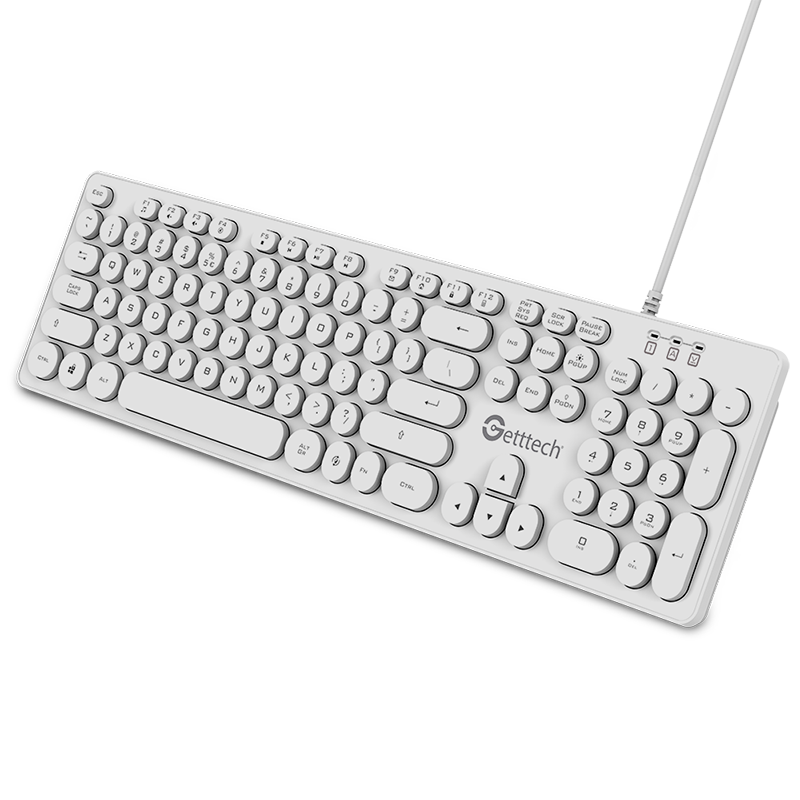
Getttech Ignite Backlit Keyboard (White)
Clean, minimalist aesthetic designed for everyday workspace and typing comfort.
View White Keyboard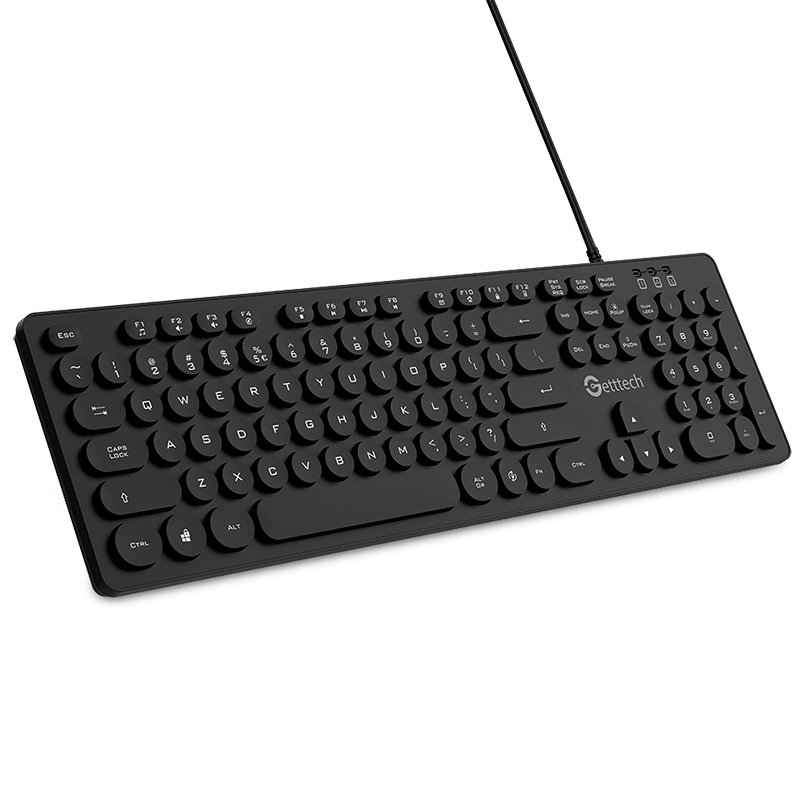
Getttech Ignite Backlit Keyboard (Gray)
Reliable performance and low-light workspace visibility for daily tasks.
View Gray KeyboardLooking for a Reliable Replacement?
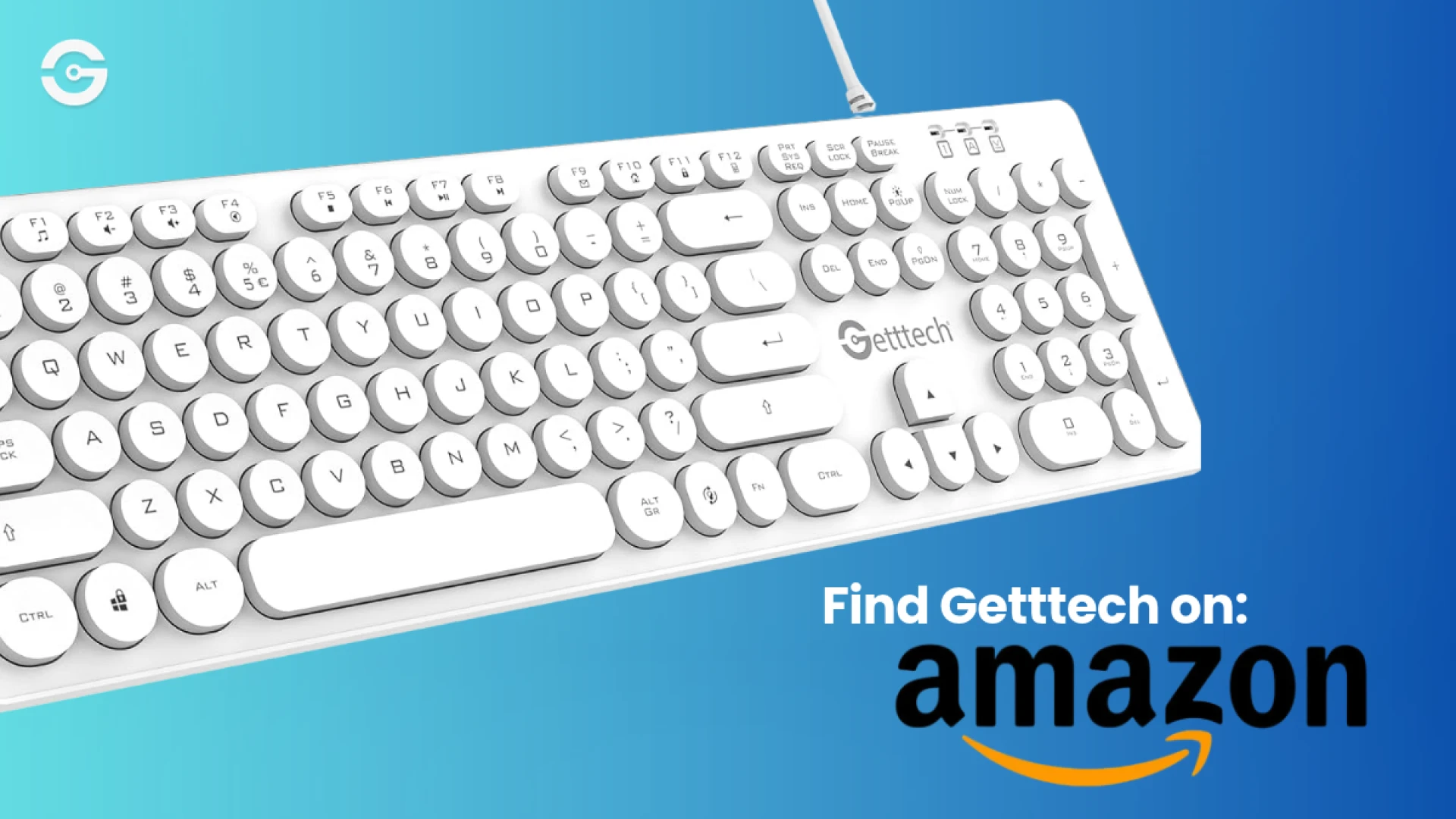
Explore available Getttech products on Amazon and find a dependable keyboard for your everyday workspace setup.

You may also like
Submit your review
Your email address will not be published. Required fields are marked *
 MOUNTS
 CABLES
 STORAGE
 KEYBOARDS & MICE
 PERIPHERALS